The IT department at most companies installs the MS Office suite on an employee’s computer without Access, but MS Access is a “specialty item”, and has to be requested as a separate install.
Since some folks don’t have the Access program, but they have Excel, in this post I am going to convert my Access database into an Excel format.
Using Access is much quicker and straight forward, but if you have to, you can use this method.
Note: you could have one installation of Access (paid) and then use the Access runtime (free) .
Here is my Access form:

******************************
In order to replicate this, I need a main form / sub form (datasheet) type setup.
I plan to accomplish the main form with just a regular userform, and for the subform (datasheet) I will be using a listbox, and labels as the column headings.
Then, finally, you will find out how to click on the listbox row and display the clicked item, so we can eventually open the compliance form (to do in the next tutorial).
*******************************
Here is what the final result will look like:

First I am going to put all of the data from my database tables into worksheets in the workbook, and add a new worksheet to start from.
This worksheet can be “decked out”, but I’m just going to add a “Start” button, and add a macro to it (as shown in the next few images).
I’ll add an image because it’s more functional for making it visually appealing than the common “button” from the Design toolbar’s toolbox.
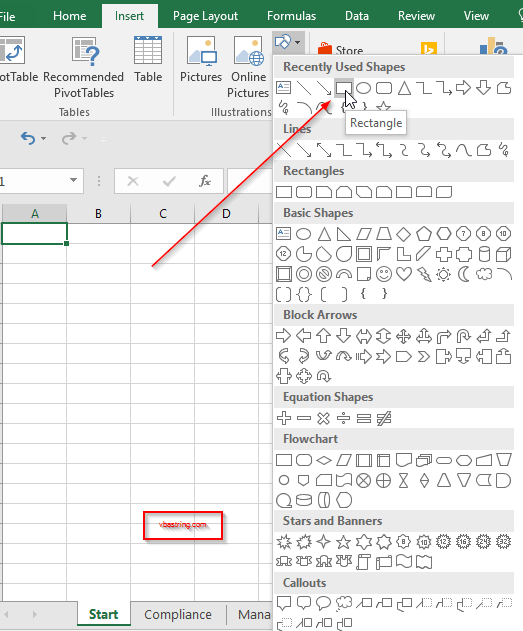


Now add the macro to show the UserForm, and attach it to the new rectangle object


Here is the image and the code for the top part of the form

'Erik Loebl
'https://vbastring.com
'erik@loeblcomservices.com

'We will make a modular scope variable because we need this _
    row reference as long as the form is open

Dim m_lngRow As Long

Private Sub btnNext_Click()
    Worksheets("Stations").Activate

    'increment the active row and sync the UserForm and the Activesheet
    'm_lngRow = ActiveCell.Row + 1
    m_lngRow = m_lngRow + 1

    'select the next cell and render the new data on the UserForm

    Worksheets("Stations").Range("A" & m_lngRow).Select
    Me.txtStationID = Range("A" & m_lngRow)
    Me.txtStationName = Range("B" & m_lngRow)

    Me.txtManagerID = Range("C" & m_lngRow)
    Me.txtVisitInterval = Range("D" & m_lngRow)
    Me.txtNextVisitDate = Range("E" & m_lngRow)

    '*************************************************
    'these are the inspections done at the station
    '*************************************************
    GetInspections (Range("A" & m_lngRow))


End Sub


Private Sub btnPrev_Click()
    'increment the active row and sync the UserForm and the Activesheet
    m_lngRow = ActiveCell.Row - 1

    If m_lngRow > 1 Then
        'select the next cell and render the new data on the UserForm
        Worksheets("Stations").Range("A" & m_lngRow).Select
        Me.txtStationID = Range("A" & m_lngRow)
        Me.txtStationName = Range("B" & m_lngRow)

        Me.txtManagerID = Range("C" & m_lngRow)
        Me.txtVisitInterval = Range("D" & m_lngRow)
        Me.txtNextVisitDate = Range("E" & m_lngRow)

        '*************************************************
        'these are the inspections done at the station
        '*************************************************
        GetInspections (Range("A" & m_lngRow))
    End If
End Sub
Here is where the data for the top comes from:

And here is the code for the bottom (sub) part of the form. The information pertaining to each station.

Function GetInspections(Arg1) As Boolean
    'Purpose: Find the new cities we did business in

    Dim cnn As Object
    Dim rst As Object
    Dim strSQL As String
    Dim lngCount As Long

    Dim strValue As String
    Dim blnNew As Boolean

    Dim strDate As String

    'In order to do queries with a WHERE clause, you need to name the range, otherwise use the worksheet name.

    'get the new list cell value
    strValue = Arg1

    If strValue = "staID" Or strValue = "" Then
        'you are at the beginning or end so don't continue
        Me.ListBox1.Clear
        GetInspections = False
    Else
        'Set up the connection to the Excel worksheet
        Set cnn = CreateObject("ADODB.Connection")
        With cnn
            .Provider = "Microsoft.ACE.OLEDB.12.0"
            .ConnectionString = "Data Source=" & ThisWorkbook.Path & "\" & ThisWorkbook.Name & ";" & _
                "Extended Properties=""Excel 12.0 Xml;HDR=YES"";"
            .Open
        End With

        'check if that value is already one we've done business in.
        strSQL = "SELECT * FROM [SC] WHERE [sacStationID] =" & strValue
        Set rst = cnn.Execute(strSQL)

        i = 0

        With Me.ListBox1
            .Clear
            .ColumnCount = 6
            .ColumnWidths = ".5in,0in,.5in,1in,.5in,0in"
        End With

        Do Until rst.EOF

            With Me.ListBox1
                .AddItem
                .List(i, 0) = rst.Fields(0)
                .List(i, 2) = rst.Fields(2)
                .List(i, 3) = rst.Fields(3)
                .List(i, 4) = rst.Fields(4)

                i = i + 1
            End With

            rst.movenext
        Loop


        rst.Close
        cnn.Close

        Set rst = Nothing
        Set cnn = Nothing

        GetInspections = True
    End If


End Function
Here is where the data for the lower form comes from:

Get The Listbox Value In VBA
To see the detail about a particular compliance inspection, we need to be able to click the sub row and then show a form based on the item that was clicked.
The form is not created yet, but for illustrative purposes, here is how we are going to capture the id to pass to the compliance inspection form.
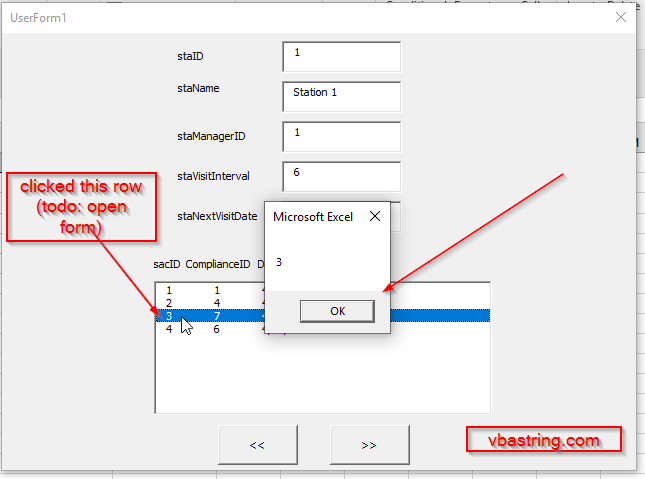
Private Sub ListBox1_Click()
    Dim intItems As Integer

    For intItems = 0 To ListBox1.ListCount - 1
        If ListBox1.Selected(intItems) = True Then
           MsgBox ListBox1.List(intItems)
        End If
     Next intItems
End Sub
Stay tuned for part 2 of this.
Any questions so far? Leave them in the comments below, and share this with someone else.